
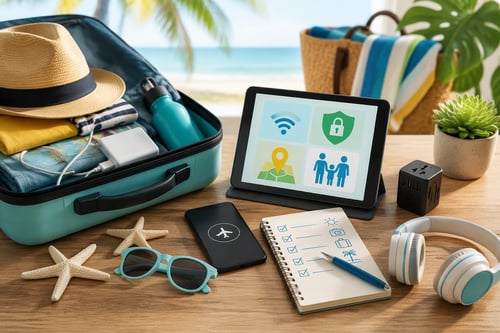
Mid-Summer Tech for Vacation & Family Prep
Moving into a new home is exciting, but it also means you just inherited technology you may not fully see yet: Wi‑Fi gear, smart locks, doorbells, thermostats, streaming devices, garage door openers, security cameras, and a growing list of apps tied to your address. This, on top of the technology you bring with you to your new home. The good news is that most tech problems homeowners experience are preventable with a simple routine.
This guide is your practical, non-technical checklist to keep your new home’s technology reliable, secure, and easy to use. You do not need to be “good with tech.” You just need a plan.
What this checklist covers
- Home Wi‑Fi and internet reliability (the foundation for almost everything)
- Security and privacy basics (so your home is protected, not exposed)
- Smart home devices (locks, doorbells, cameras, thermostats, garage)
- Computers, phones, tablets, and backups
- TV and streaming setup
- Seasonal reminders and “when something feels off” troubleshooting
If you do nothing else, follow the monthly section and the quarterly password and backup steps. Those two habits prevent the majority of service calls.
First Month in a New Home: One-Time Setup (Do this once)
1) Create a “Home Tech” note (15 minutes)
Make a single note or document called Home Tech Info (Notes app, Word or Google Doc, or a simple notebook).
Include:
- Internet provider name, account login, support number
- Wi‑Fi network name (SSID) and password
- Router brand and model (photo of the sticker is fine)
- Any smart home apps you use (Ring, Google Home, Alexa, SmartThings, etc.)
- Alarm company, camera system info, and door code instructions
- Where key tech lives: modem location, router location, network panel, UPS battery backup
This becomes your “tech glovebox.” When something breaks, you will not have to search old emails.
2) Secure the basics: Wi‑Fi and router (20 to 40 minutes)
Your Wi‑Fi router is the front door to your home’s tech.
Checklist:
- Change the router admin password (not the Wi‑Fi password, the router login).
- Update the Wi‑Fi password if it was left by the previous owner.
- Use a strong Wi‑Fi password: a long phrase is best (example:
CoffeeLakeHouse!BreezyMornings2026). - Turn on automatic updates for the router if available.
- If your router offers it, enable WPA3 (or WPA2 if WPA3 is not available).
- Disable WPS (a “quick connect” feature that is often abused).
Practical example: If a contractor still has your Wi‑Fi password from a renovation, they could reconnect months later. Changing the password after move-in is an easy win.
3) Set up a “Guest Wi‑Fi” network (10 minutes)
Create a separate guest network for visitors and smart devices you do not fully trust.
Use it for:
- Guests and babysitters
- Certain smart plugs, inexpensive cameras, or older devices
Benefit: If a device gets compromised, it is less likely to access your personal phones and computers.
4) Transfer ownership of smart home devices (30 to 60 minutes)
New homeowners often find devices still tied to the previous owner’s account. You may notice this when an app says “device already registered.”
Checklist:
- Smart locks, doorbells, cameras, thermostats, and garage door openers
- Smart TVs, streaming sticks, and voice assistants
If the previous owner cannot remove it remotely, you may need a factory reset. Look for a reset pinhole or a “hold button for 10 seconds” option.
5) Check Wi‑Fi coverage in the real places you live (10 minutes)
Walk to:
- Main living room and TV area
- Home office
- Primary bedroom
- Backyard patio
- Garage
If video calls freeze or streaming buffers in those locations, you may need:
- Better router placement (often the easiest fix)
- A mesh Wi‑Fi system (if your new home is spread out over a large area)
- A wired access point for larger homes
Rule of thumb: If your router is tucked in a closet, behind a TV, or inside a metal structured wiring panel, you are asking it to do the hardest job from the worst location.
Monthly Maintenance Checklist (Your “Time Hero” routine)
Aim for 20 to 30 minutes once a month.
1) Reboot the modem and router (5 minutes)
Yes, this is basic, and yes, it works.
Steps:
- Look at your internet equipment:
- If you have two boxes (a modem and a router), unplug both.
- If you have one box (a modem/router combo), unplug that one.
- Wait 30 seconds.
- Plug the modem back in (or the combo unit).
- If you have a separate router, plug it back in after the modem is fully online (usually 2 to 5 minutes).
- Wait 1 to 2 minutes, then confirm your Wi‑Fi is working.
Why it matters: Devices can slowly build up errors or memory issues. A monthly reboot clears out weirdness before it becomes a full outage.
2) Run a quick internet speed test (3 minutes)
Use a reputable speed test app or website on your phone while connected to Wi‑Fi.
Track:
- Download speed
- Upload speed
- Ping/latency
Write results in your “Home Tech Info” note.
Practical example: If your internet is supposed to be 500 Mbps down but you consistently see 40 Mbps, you can show your provider a pattern and request troubleshooting or a replacement modem.
3) Check storage and battery health where it matters (5 to 10 minutes)
- Security cameras: confirm the app shows “online” and recording.
- Doorbell camera: verify motion alerts still arrive.
- Smart lock batteries: many locks show battery percentage in the app.
- Smoke/CO/Water smart detectors: check app status and replace batteries if needed.
If a camera is “offline” often, it is usually Wi‑Fi coverage, not the camera itself. That is an important distinction that saves money and frustration.
4) Confirm backups are working (5 minutes)
Most people think they have backups. Many do not.
Pick one:
- Phone photos: confirm iCloud Photos, OneDrive, or Google Photos is syncing.
- Computer: confirm Time Machine (Mac) or Windows Backup is running.
- Important files: confirm at least one cloud folder is syncing (Google Drive, OneDrive, iCloud Drive).
Quick test: Create a small note file called “Backup Test” and confirm you can see it from another device.
5) Clean up your TV and streaming system (5 minutes)
- Remove apps you do not use.
- Confirm your streaming devices are logged into the right accounts.
- Check for updates (most update automatically, but not always).
Practical example: Homes often come with old streaming accounts still logged in. Logging out protects you and prevents accidental purchases.
Quarterly Checklist (Every 3 months)
1) Update passwords and enable 2-step verification (30 minutes)
Focus on the accounts that matter most:
- Email account (your master key)
- Apple ID or Google account
- Smart home platforms (Ring, Nest, Alexa, Google Home)
- Password manager (if you use one)
Best practice:
- Use a password manager if you can. If you do not, use a written “home safe list” stored securely.
- Turn on two-factor authentication for email and smart home accounts.
Why this matters: If someone gets into your email, they can often reset everything else.
2) Review who has access to your home tech (15 minutes)
In each smart home app, review shared users:
- Former owner accounts
- Old contractors
- Ex-partners
- Guests you forgot you added
Remove anyone who does not need access.
3) Inspect and tidy your network area (10 minutes)
Where the modem/router lives:
- Remove dust and clutter.
- Ensure vents are not blocked (heat kills electronics).
- Confirm cables are snug (a slightly loose coax or Ethernet cable causes random dropouts).
- If you have a battery backup (UPS), test it by pressing the test button.
Twice a Year (Spring and Fall): Seasonal Tech Tune-Up
Spring (after storms and power flickers)
- Check cameras and doorbells for water intrusion or corrosion.
- Confirm outdoor Wi‑Fi coverage for the yard, patio, and garage.
- Test the garage door opener safety sensors.
Fall (before holiday guests and travel)
- Confirm guest Wi‑Fi is working.
- Update streaming devices before family visits.
- Check smart lock batteries and replace if under 40 percent.
- Confirm remote access works for cameras and locks if you travel.
Simple Troubleshooting When Things Feel “Off”
“My Wi‑Fi is slow”
Try in this order:
- Reboot modem and router.
- Move closer to the router and test again.
- If speed is good near the router but bad elsewhere, it is coverage.
- If speed is bad everywhere, contact the provider or consider replacing the modem/router.
“My smart device is offline”
Common causes:
- Wi‑Fi password changed and device did not reconnect
- Weak signal where the device is installed
- App permissions disabled (notifications off)
- The device needs a firmware update
Quick fix: Power cycle the device if possible, then check the app for an update prompt.
“I am not getting notifications”
Check:
- Phone notification settings for that app
- App permissions (notifications allowed)
- Battery optimization settings (some phones restrict background alerts)
- Do Not Disturb or Focus mode
Practical example: A doorbell can be working perfectly, but your phone is set to silence that app. It feels like a device failure, but it is a phone setting.
What to keep on hand (recommended home tech “toolkit”)
You do not need a full workshop. Just a few basics:
- Extra AA/AAA batteries (for locks and sensors)
- A small label maker or masking tape + marker (label cables)
- A surge protector for the modem/router area
- Optional: a battery backup (UPS) for the modem/router (helps during brief outages)
- A spare Ethernet cable
Your “SimpleTech Time Hero” plan
Once a month (20 to 30 minutes):
- Reboot modem and router
- Run speed test and record results
- Check cameras, doorbell, and smart lock batteries
- Confirm backups are running
- Quick cleanup of TV and streaming devices
Every 3 months:
- Update key passwords and confirm 2-step verification
- Review smart home shared users and remove old access
- Inspect modem/router area (dust, heat, cables)
Twice per year:
- Seasonal tune-up (outdoor devices, guest Wi‑Fi, travel readiness)
Give us a call, or fill out the contact form to the right (below on mobile), for a personalized consultation to secure your family’s or business’s digital life.
Kevin Mewborn
May 29, 2026, 9:00:00 AM
May 29, 2026, 9:00:00 AM
Comments